The browser dialer is fine for a quick call, but if you make calls all day you probably want your own tools: a softphone you already know, or the PBX your office runs on. Every Spoof Caller ID account comes with a SIP account and an IP2IP line for exactly that. Once it's set up, you dial from your usual app, and the person you call sees the caller ID you picked.
There are two ways to connect, and which one you want depends on what you're plugging in:
- SIP registration (Credentials tab): for softphones like Zoiper, Linphone, MicroSIP or Groundwire. Your app logs in with a username and password.
- IP2IP (IP2IP tab): for a PBX or switch with a fixed public IP, such as Asterisk, FreePBX or 3CX. No login: we recognise your server by its IP.
Both live on the Spoof Call page, in the SIP & IP2IP card.
Option 1: Connect a softphone with SIP credentials
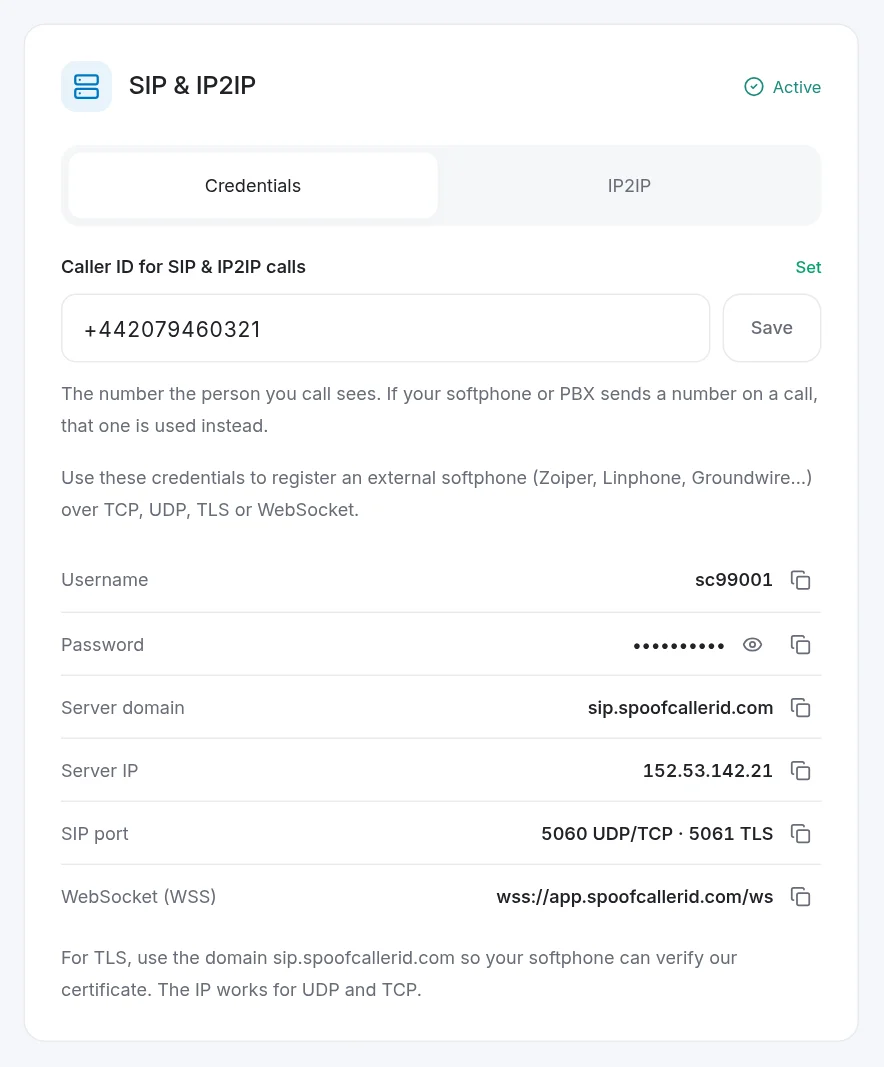
Open the Credentials tab and copy these into a new SIP account in your softphone:
- Username and Password. The eye icon reveals the password and the copy icons save you some typing.
- Server domain:
sip.spoofcallerid.com, or the Server IP 152.53.142.21
- Port:
5060 for UDP or TCP, or 5061 if your app supports TLS. TLS encrypts your signalling, so use it if you can. With TLS, enter the domain rather than the IP, so your app can verify our certificate.
- WebSocket (WSS):
wss://app.spoofcallerid.com/ws, only if you're using a WebRTC client.
In most softphones that means adding a new SIP account, pasting the username and password, entering the server as the domain or host, and picking UDP, TCP or TLS. Within a few seconds the account should show as registered.
Option 2: Send calls from your PBX with IP2IP
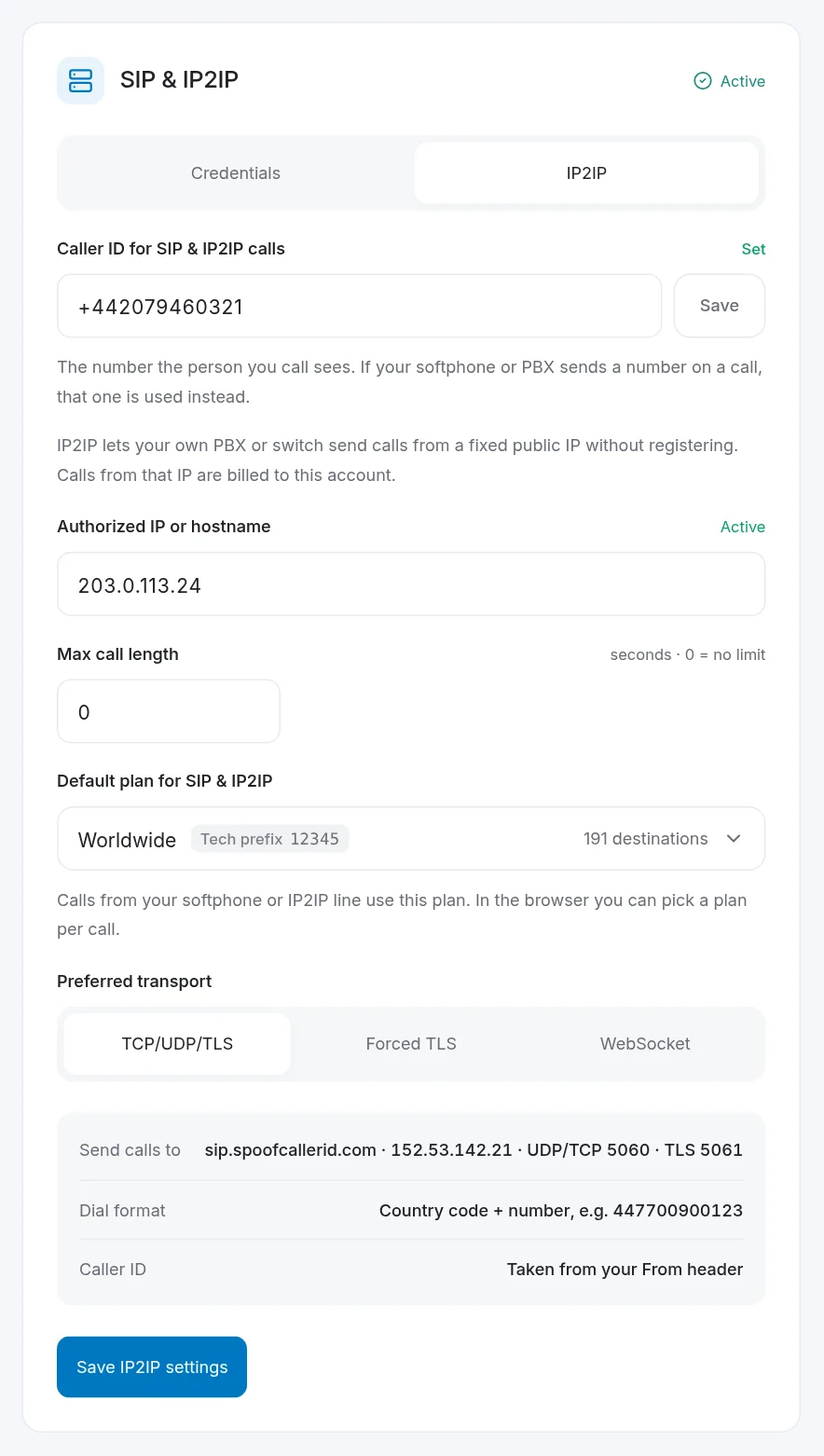
IP2IP is the cleaner option if you already run a PBX, because there's nothing to register and nothing to keep alive.
- Open the IP2IP tab and enter your server's public IP or hostname.
- Set a max call length in seconds if you want a safety net against stuck calls.
0 means no limit.
- Choose your preferred transport: TCP/UDP/TLS, forced TLS, or WebSocket.
- Click Save IP2IP settings.
- On your PBX, add a trunk pointing to
sip.spoofcallerid.com (or 152.53.142.21) on UDP/TCP 5060 or TLS 5061, and dial numbers as country code + number, for example 447700900123.
One thing to be careful about: every call that arrives from that IP is billed to your account. Only add addresses you control, and update the setting if your server's IP changes.
Setting your caller ID for SIP and IP2IP calls
Both tabs share one field: Caller ID for SIP & IP2IP calls. Type the number with its country code (6 to 15 digits) and press Save.
Here's how the number is picked on each call:
- If your softphone or PBX sends a number on the call (in the From header), that's the one shown. This lets your PBX use a different caller ID per call.
- If it doesn't send one, your saved caller ID is used.
- If neither is set, the call is refused. We'd rather fail the call than show a number you never chose.
Choosing which plan your calls use
The Default plan for SIP & IP2IP picker decides the per-minute rates for calls from your softphone or PBX. Each plan shows its tech prefix and how many destinations it covers. Calls from the browser can still use a different plan per call.
Troubleshooting
The softphone says "registration failed." Re-copy the password (an extra space is the usual culprit), then try TCP instead of UDP. Some Wi-Fi networks and hotel routers block UDP 5060.
Calls connect but nobody hears anything. That's almost always NAT on your side. Turn on STUN or keep-alive in the softphone, or switch to TLS.
Every call is refused straight away. Check that a caller ID is saved, that your balance isn't empty, and that your monthly plan is active.
My PBX calls go out with the wrong number. Your PBX is sending its own number in the From header, and that one wins. Fix it in the trunk's outbound caller ID setting.
FAQ
Which softphones work with Spoof Caller ID?
Any standard SIP softphone: Zoiper, Linphone, MicroSIP, Groundwire, Bria, Acrobits and others. If it can register to a SIP server with a username and password, it works.
Can I use SIP and IP2IP at the same time?
Yes. They're two separate ways into the same account, and both show up in your call history, labelled by line.
Is the SIP connection encrypted?
It is when you use TLS on port 5061 or WebSocket over WSS. Plain UDP and TCP aren't encrypted, so use TLS when your app supports it.
